
MitKar – Fix CapCut AI Garbled Text Error (UTF-8 Encoding Guide)
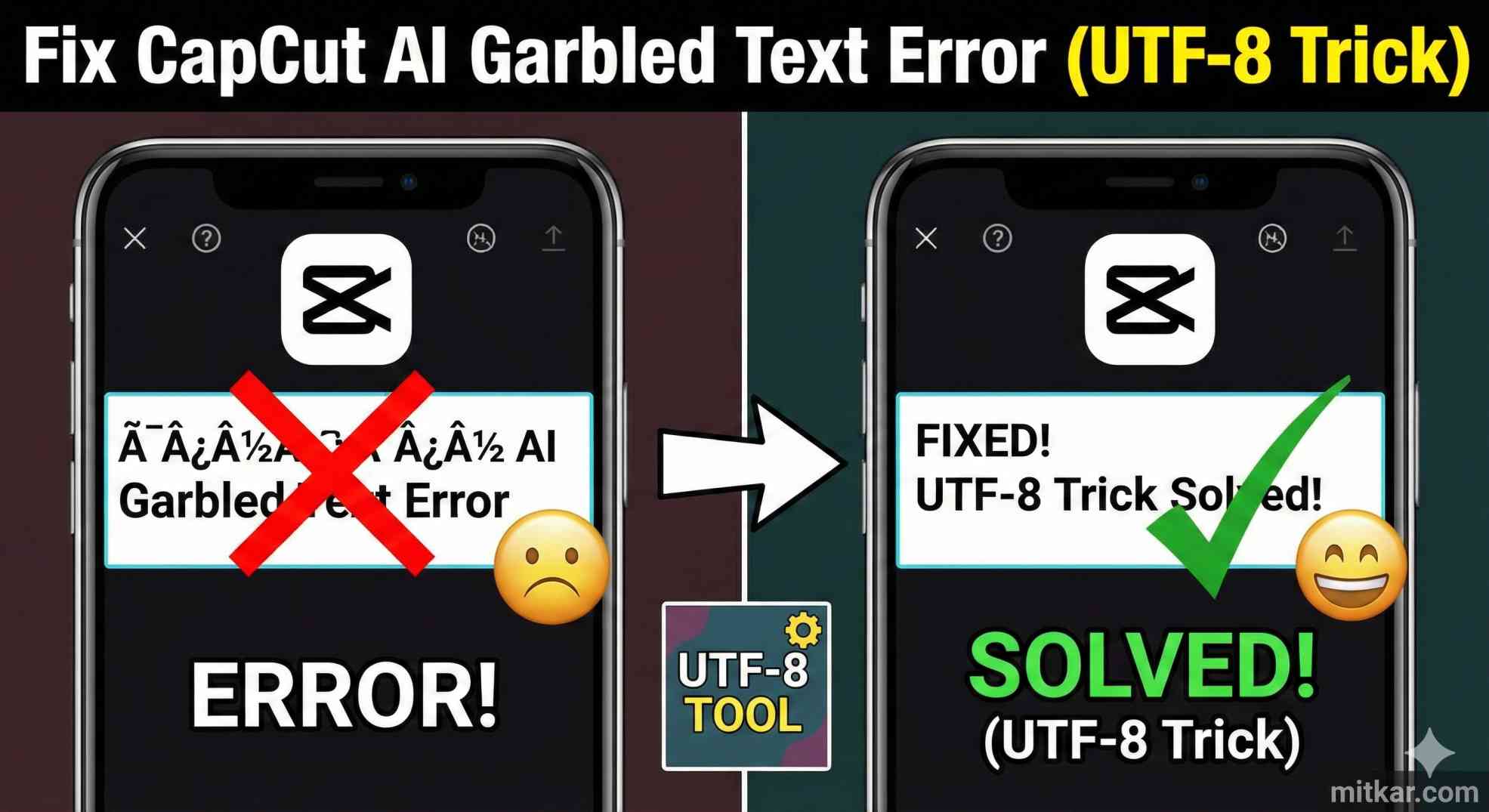
The introduction of built-in Auto Captions entirely revolutionized the modern video editing workflow. Instead of manually transcribing prolonged spoken dialogue for hours, creators can now generate dynamic, accurate subtitles instantly. However, nothing shatters that incredible productivity faster than excitedly waiting for the cloud API to transcribe your video, only to receive a broken timeline populated entirely by strange square boxes, question marks, and unrecognizable garbled text symbols.
When encountering this frustrating visual anomaly, most users immediately assume that the currently selected font simply does not support their language. They frantically attempt to fix the CapCut AI garbled text error by cycling through dozens of different commercial font styles, entirely reinstalling the editing application, or arbitrarily clearing their global project cache. Unfortunately, absolutely none of those superficial methods will ever successfully resolve the problem. This malfunction is not a simple user interface bug; it is a profound, system-level character encoding methodology mismatch actively occurring between the remote transcription servers and your local personal computer operating system environment. Understanding how to properly configure your machine's linguistics database is the sole mechanism required to restore readable subtitles.
The Deep Root Cause: Legacy ANSI versus Universal UTF-8 Constraints
To fundamentally comprehend why these bizarre visual symbols appear abruptly across your timeline, we must explicitly examine how digital computers process human language syntax. A computer strictly understands binary numbers, meaning every single letter in the alphabet must be decisively assigned a specific numerical value. The framework dictating these specific numerical assignments is formally called an overall character encoding standard.
- The Cloud Server Processing: When the editing software actively analyzes your video's audio, the internal backend server subsequently transmits the completed transcription back to your machine utilizing pure UTF-8 (Unicode). Unicode is the definitive modern global standard specifically designed to successfully support virtually every language character, emoji, and symbol on earth simultaneously.
- The Legacy Windows Constraint: Conversely, if your particular Windows system locale defaults strictly to utilizing older, geographically isolated ANSI code pages (which remains incredibly common in non-English native Windows setups), your operating system physically lacks the vocabulary database to decipher the rich UTF-8 payload.
- The Visual Collision: Because the software receives complex universal data but your operating system demands localized legacy translation, CapCut literally cannot accurately map the modern UTF-8 characters onto your physical screen. It defaults to rendering placeholder syntax squares representing "unknown data."
The Core Technical Resolution: Aggressively Modifying the Global System Locale
The definitive, permanent CapCut AI garbled text solution explicitly requires forcing your native operating system to comprehensively abandon legacy algorithms and actively accept global UTF-8 encoding system-wide. This structural modification instantly enables the editing software to visually render complex languages seamlessly.
- Initiate Local Control Panel: Press your primary Windows Key located on your hardware keyboard, intentionally type
Control Panelinto the search bar, and hit Enter to launch the legacy administration suite. - Navigate Regional Settings: Strategically click on the Clock and Region categorical header, followed directly by clicking Region. A specialized configuration properties window will instantly materialize.
- Access Administrative Controls: Click decisively on the Administrative tab positioned at the upper right section of the properties window.
- Initiate Locale Designation: Carefully locate the specific sub-section titled "Language for non-Unicode programs". Click the prominent administrative button labeled Change system locale... (You may be prompted for inherent Administrator security privileges).
- Enforce Global Unicode Support: A secondary dialogue box will appear. Look directly at the bottom section and intentionally check the crucial box explicitly stating: Beta: Use Unicode UTF-8 for worldwide language support.
- System Reboot Requirement: Click OK securely on all active windows. Your machine will aggressively solicit a system reboot. You must Restart your computer completely for the foundational registry alterations to successfully propagate.
Upon successfully rebooting your desktop workstation, explicitly launch your target video editing software and forcefully re-initiate the auto-caption generation sequence. The prior garbled text corruption will vanish entirely, replaced perfectly by flawlessly readable, perfectly synced linguistic subtitles encompassing any international language dialect.
If you frequently encounter explicit system connection errors while attempting to remotely generate these captions, heavily consider reviewing our advanced diagnostic breakdown regarding how to fix generic export communication errors permanently.
Technical Comparison Matrix: Text Encoding Processing Impacts
To practically illustrate exactly why maintaining legacy linguistics architecture actively destroys modern creative software integration capabilities, please review the subsequent technical performance metric comparison.
| Core Encoding Standard Framework | Direct Impact on Transcripts | System API Translation Capacity |
|---|---|---|
| Standard ANSI / Localized Shift-JIS / GBK | Generates empty square placeholders and question marks | Strictly limited to single-region dialects |
| Global Forced UTF-8 Integration (Beta) | Perfectly clear, accurately readable subtitles | Modern, universally seamless cross-server interaction |
Frequently Asked Questions (FAQs)
1. Does checking the UTF-8 Beta box harm older programs?
Generally, no. The vast majority of software produced within the last fifteen years universally supports Unicode inherently. Highly antiquated, extremely niche localized software designed exclusively for Windows 95 architecture might display slight UI text anomalies, but modern creative suites strongly benefit.
2. Can I revert this character encoding change if necessary?
Absolutely. If you experience negative compatibility issues with a specific critical legacy program, simply navigate back into the exact same administrative Region control panel, uncheck the beta UTF-8 option box, completely reboot your machine, and your registry aggressively reverts.
3. Will installing custom fonts fix the squares instead?
No. If the fundamental binary data transferring from the server is inherently unrecognized by the operating system, downloading specialized typography fonts will merely change the visual appearance of the error squares, not actually translate the missing linguistics data.
4. Why does this error predominantly occur on non-English systems?
Installations configured natively for Asian, Middle Eastern, or Eastern European localized regions heavily utilize proprietary internal code pages (like GB2312 or Windows-1256) strictly overriding modern internet standards. Enforcing UTF-8 bridges that regional translation gap effectively.
5. Does this encoding solution resolve missing video timeline emojis?
Yes. Emojis strictly operate upon standardized universal Unicode directories. By forcing your native operating system to globally recognize UTF-8 streams, missing emojis rendered previously as broken graphical boxes will correctly materialize.
Final Conclusion
Encountering entirely unreadable hieroglyphics after patiently relying on cloud processing transcription tools serves as a massive workflow disruption. By distinctly identifying that the CapCut AI garbled text scenario predominantly stems from archaic Windows environment interpretation capabilities rather than application-layer malfunctions, you systematically isolate the root cause. Implementing the universal standard initialization override permanently modernizes your machine's linguistics architecture.
Do not permit frustrating technical translation errors to restrict your digital publication cadence. If you successfully bypassed this software visual anomaly, broaden your creative potential by exploring exactly how to strategically resolve severe high dynamic range stuttering commonly surrounding intensive mobile video imports.